Contact Us

If you still have questions or prefer to get help directly from an agent, please submit a request.
We’ll get back to you as soon as possible.

Please fill out the contact form below and we will reply as soon as possible.

  • Contact Cropster Support
English (US)
US English (US)
DE German
  • Home
  • Cafe
  • Cafe Operations

Using the new Cafe Location Dashboard

Written by Nikolett Takacs

Updated at February 10th, 2026

Contact Us

If you still have questions or prefer to get help directly from an agent, please submit a request.
We’ll get back to you as soon as possible.

Please fill out the contact form below and we will reply as soon as possible.

  • Connecting your roast machine
    General information Plug&Play connectors Alternative connection options Sample & Multi-barrel roasters Temperature sensors Drivers
  • Roast
    Getting Started Inventory Management Sample Management Roast Scheduling Roasting Processes Reporting Troubleshooting
  • Roasting Intelligence
    Getting Started Using Roasting Intelligence Roasting Intelligence AI Features Customization and Preferences Troubleshooting
  • Cafe
    Espresso machine connection Getting Started Cafe Operations Cafe Telemetry Cafe Inventory Recipe Management Assets Management Troubleshooting
  • Commerce
    Getting Started Product Management Order Management Inventory Management Reporting Troubleshooting
  • Origin
    Getting Started Operations Reporting
  • Quality Control
    Cupping Physical Analysis
  • Sharing & Exporting Cropster Data
  • Account & Administration
    General Account Management General User Management Troubleshooting
+ More

Table of Contents

Overview Instructions Navigating to the Location Dashboard Exploring the sections of the Location Dashboard  Location/Your day at Dialing-in Recipe cards Tasks Telemetry Insights and Inventory Insights 

Overview 

This article introduces the features of the new Cafe Location Dashboard.  The Locations Dashboard is the new landing page for Baristas and Head Baristas. 

It replaced the Barista Onsights page, offering a clear view of: 

  • Your location
  • Active recipes at your location
  • Dial-ins
  • Tasks
  • Telemetry Insights and Inventory Insights 
     

💡Good to Know

Your entire operation, right in your pocket. You can access your Location and Operations data anytime, anywhere - perfectly optimized for your mobile phone.


Instructions 

Navigating to the Location Dashboard 

  1. Log in to the online platform C-sar.
  2. Navigate to Cafe on the main menu bar. 
  3. You will be directed to the Operations Fleet Dashboard. 
    If you are a Cafe Manager, switch to the Locations Dashboard. Baristas and Head Baristas can skip this step—this is your default landing page after logging in and selecting Cafe.


Exploring the sections of the Location Dashboard 


The Location Dashboard is organized into these five sections:

  1. Location/Your day at
  2. Dialing-in
  3. Recipe cards
  4. Tasks
  5. Telemetry and Inventory Insights 


Location/Your day at


In the Location section, you can: 

  • Select your active location: Use the dropdown menu to ensure you are viewing and/or managing the correct site. 
  • Toggle between sites: Use the dropdown menu to switch between different locations. 
  • Verify the site context: Use the dropdown to confirm your current workplace is selected, so that all logged brews and data are attributed to the right location. 


Dialing-in

You can select between the following two options:

  1. Log an Espresso (Dial-in manually): Perform a sensorial analysis and score a specific recipe and roast.
  2. Dialing in on a connected espresso machine


Learn more about how to dial in with Cropster Cafe.


Recipe cards 

In the Recipe cards section, you can: 

  • Swipe or scroll sideways to browse your Recipe collection organised by brewing method.
  • View the latest reference date directly on your Recipe cards.
  • View the top two attributes at a glance on each Recipe card.
  • Log brews manually by clicking Log Brew directly from your Recipe cards. 


Tasks

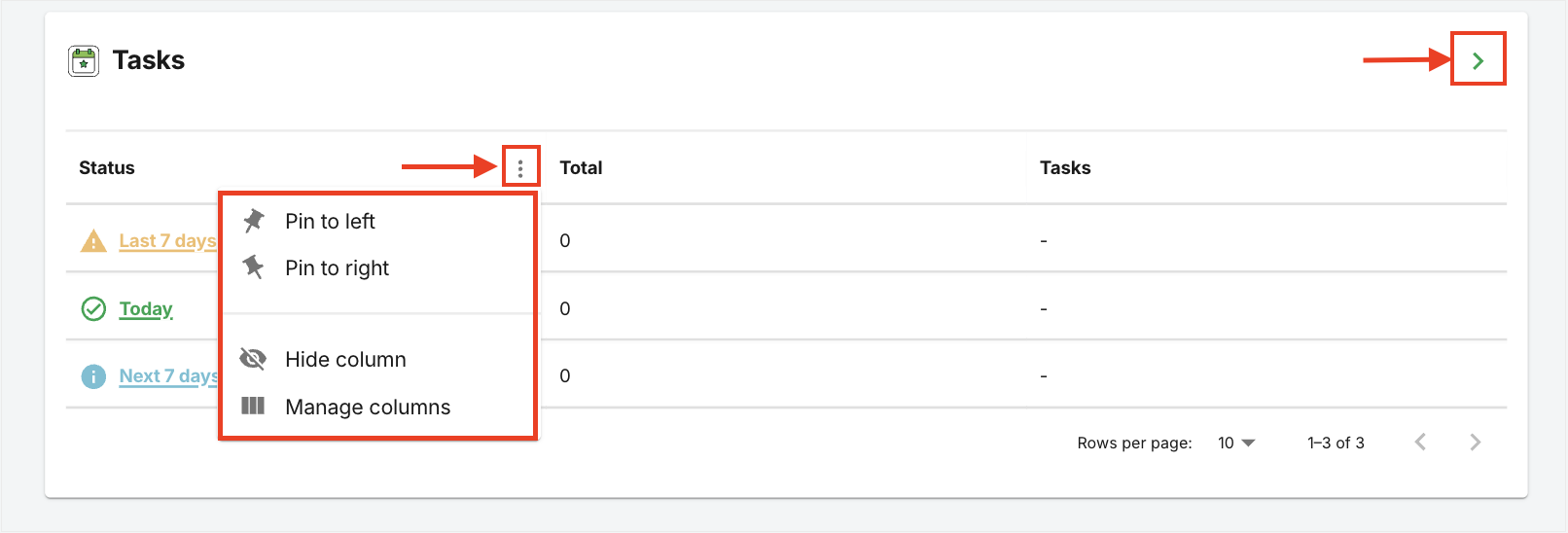
All tasks linked to your selected location appear here.

This section displays three categories of tasks:

  1. Last 7 days
  2. Today
  3. Next 7 days 

When you click on a task category, the corresponding tasks appear on the Task Board. 
You can also access the Task Board by clicking on the ">" (chevron).
Screenshot 2025-09-01 at 15.21.40

Select the 3 dots to perform the following actions:

  • Pin to the left
  • Pin to the right
  • Hide column
  • Manage columns


Telemetry Insights and Inventory Insights 


⚠️ Please contact your Group Administrator if you need access to these two tabs. 


 In the Telemetry and Inventory Insights section, you can:

  • View detailed Telemetry and Inventory Insights tailored to your selected location.

If you have further questions, feedback, or concerns, please submit a support ticket directly from support.cropster.com.


cafe location dashboard dialing in recipes

Was this article helpful?

Yes
No
Give feedback about this article

Related Articles

  • Dialing in with Cropster Cafe
  • Using the Cafe Inventory Insights Overview page
  • Using the Telemetry Insights for connected espresso machines
  • Who can access what in Cropster Cafe - User Permission Overview

Contact

USA: +1 916-550-1682

(MON – FRI 8 AM – 5 PM PST)

Contact Us

  • Download Roast Intelligence
  • Create SLIC QR-Code
  • Scan SLIC QR-Code
  • Connect your Roast Machine
  • Sign up for RMM Beta Program
  • About Us
  • Careers
  • Contact
  • Partners
  • Privacy
  • Legal Notice
  • Terms of Service
  • EU Whistleblowing directive
  • Create a Support Ticket
  • Cropster Helpdesk
  • Cropster System Status
  • Product Updates
Expand