Contact Us

If you still have questions or prefer to get help directly from an agent, please submit a request.
We’ll get back to you as soon as possible.

Please fill out the contact form below and we will reply as soon as possible.

  • Contact Cropster Support
English (US)
US English (US)
DE German
  • Home
  • Roasting Intelligence
  • Troubleshooting
  • General

How to report issues to Customer Support via Roasting Intelligence

Written by Nikolett Takacs

Updated at January 22nd, 2026

Contact Us

If you still have questions or prefer to get help directly from an agent, please submit a request.
We’ll get back to you as soon as possible.

Please fill out the contact form below and we will reply as soon as possible.

  • Connecting your roast machine
    General information Plug&Play connectors Alternative connection options Sample & Multi-barrel roasters Temperature sensors Drivers
  • Roast
    Getting Started Inventory Management Sample Management Roast Scheduling Roasting Processes Reporting Troubleshooting
  • Roasting Intelligence
    Getting Started Using Roasting Intelligence Roasting Intelligence AI Features Customization and Preferences Troubleshooting
  • Cafe
    Espresso machine connection Getting Started Cafe Operations Cafe Telemetry Cafe Inventory Recipe Management Assets Management Troubleshooting
  • Commerce
    Getting Started Product Management Order Management Inventory Management Reporting Troubleshooting
  • Origin
    Getting Started Operations Reporting
  • Quality Control
    Cupping Physical Analysis
  • Sharing & Exporting Cropster Data
  • Account & Administration
    General Account Management General User Management Troubleshooting
+ More

Table of Contents

Overview Instructions

Overview 

This article explains how to submit your log files through Roasting Intelligence to report an issue to Customer Support.


Instructions

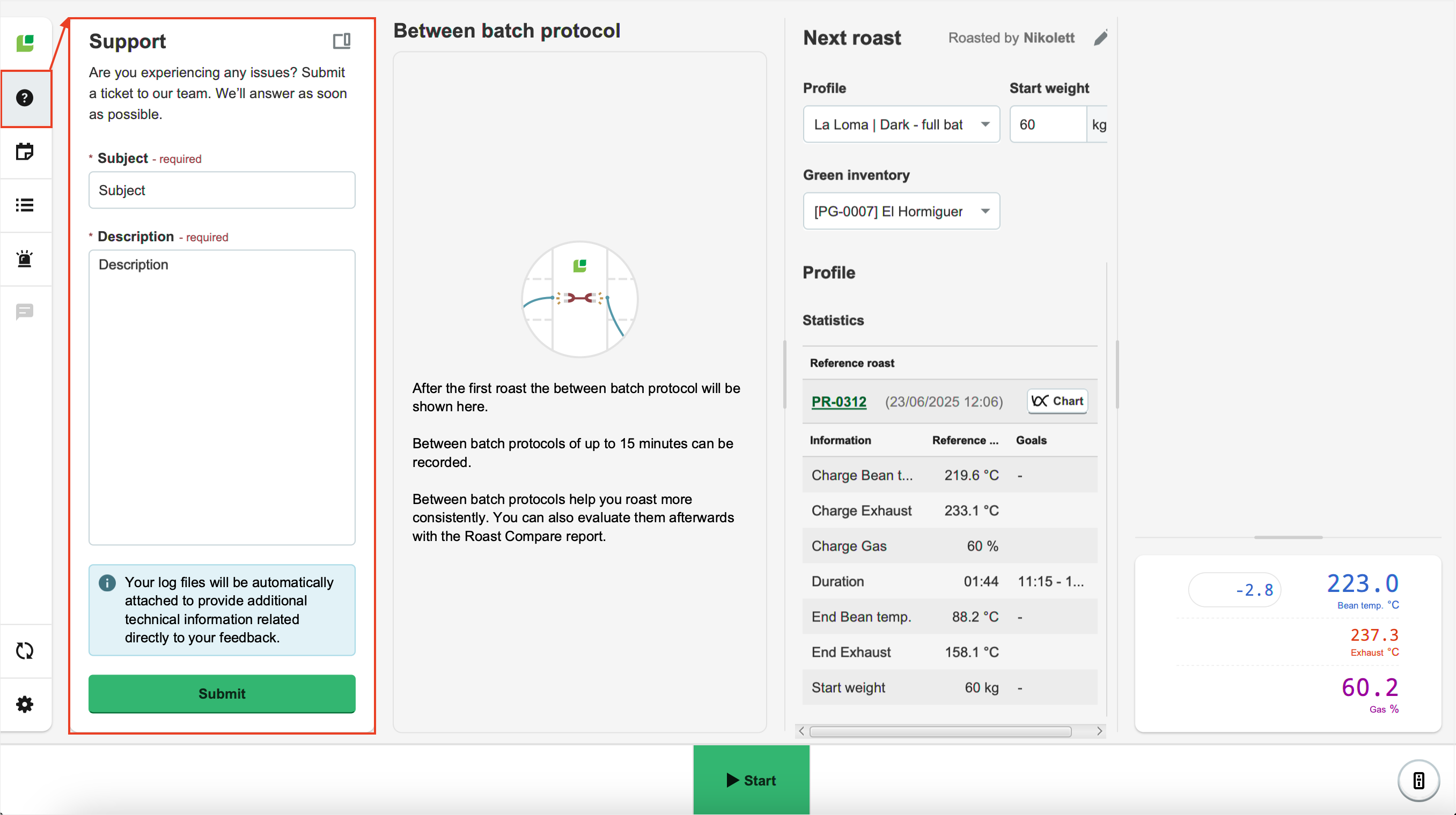
If you encounter technical issues with Roasting Intelligence, our Customer Support team will need to review your log files. 
When you use the in-app support feature, your log files are included automatically:

  1. Close and reopen Roasting Intelligence.
  2. Navigate to Support on the Menu sidebar. 
    Screenshot 2025-08-18 at 15.23.58
  3. Enter the following information: 
    * indicates mandatory fields
    • *Subject
    • *Description: If you have previously contacted a Cropster employee, please mention their name in the description field.
  4. Click Submit.

 If you have further questions, feedback, or concerns, please submit a support ticket directly from support.cropster.com. 

roasting intelligence log files report issues to customer support via roasting intelligence log files

Was this article helpful?

Yes
No
Give feedback about this article

Related Articles

  • How to find the 'CropsterRoastingIntelligence' folder on your computer
  • How to export and send the log files to Customer Support via email
  • What to do if Roasting Intelligence shows "No Sources Connected"
  • Troubleshooting Roasting Intelligence syncing issues

Contact

USA: +1 916-550-1682

(MON – FRI 8 AM – 5 PM PST)

Contact Us

  • Download Roast Intelligence
  • Create SLIC QR-Code
  • Scan SLIC QR-Code
  • Connect your Roast Machine
  • Sign up for RMM Beta Program
  • About Us
  • Careers
  • Contact
  • Partners
  • Privacy
  • Legal Notice
  • Terms of Service
  • EU Whistleblowing directive
  • Create a Support Ticket
  • Cropster Helpdesk
  • Cropster System Status
  • Product Updates
Expand